MaintMode Walkthrough

Walkthrough · 6 steps · 4 min read

What using MaintMode actually looks like.

One maintenance window, start to finish — from registering the database it touches to approving it with three conflicts on screen. Every screenshot below is the real product, not a mockup.

Tell it what you actually run

Register the things maintenance touches — services, databases, clusters. This is the one bit of setup, and it's what makes everything after it possible.
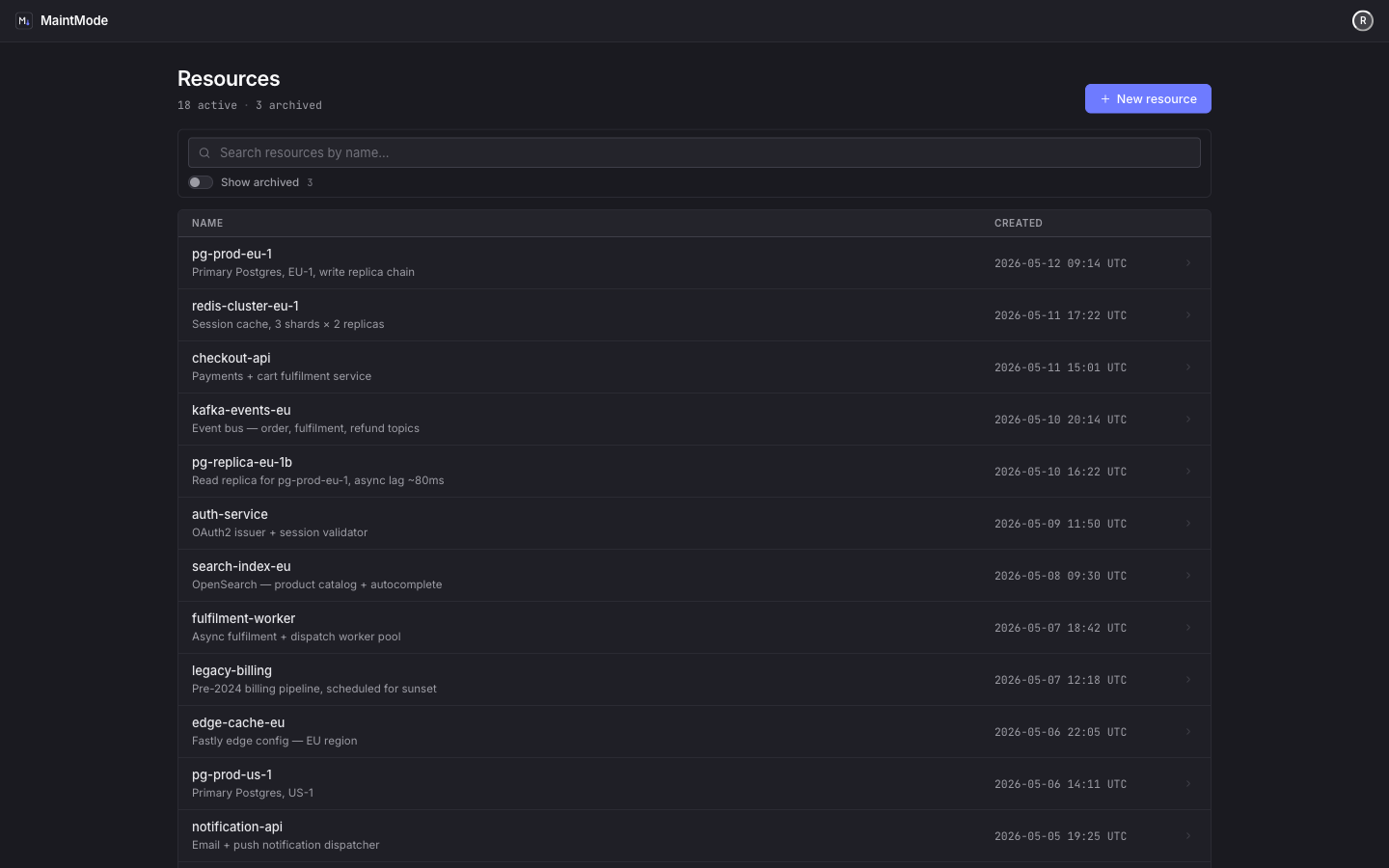
The resources list in MaintMode, showing registered databases, services and clusters

What happens

You add each one once. Retired resources get archived rather than deleted, so past work keeps its context.

Why it matters

A calendar only knows about time. Once MaintMode knows pg-prod-eu-1 is a thing, it can tell you two people booked it for the same hour.

Checkpoint. Your resources are registered and ready to be attached to work.
Plan the window

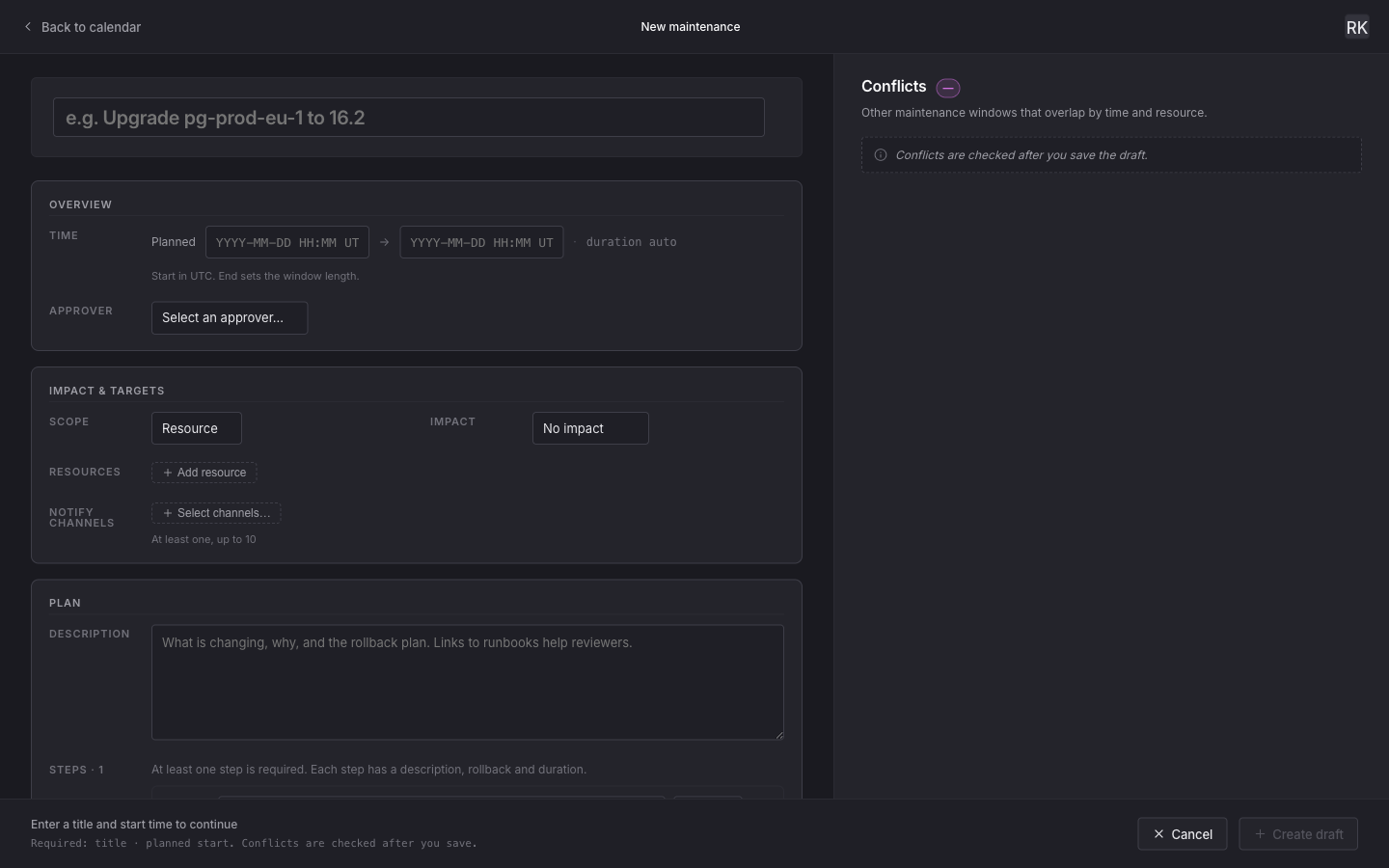
Create the maintenance as a draft: when it runs, what it touches, how much it hurts, and the steps you'll follow.

The new maintenance form in MaintMode: planned time window, approver, scope, impact, resources, notify channels and steps

What happens

When it runs, who approves it, what it touches, how much it hurts, who gets notified — and the steps you'll walk through, each with its own rollback note.

Why it matters

What it touches and how much it hurts aren't paperwork — they're what the conflict check reads. Save the draft and it starts looking.

Checkpoint. The window exists as a draft, visible to the team.

See the clash before you commit

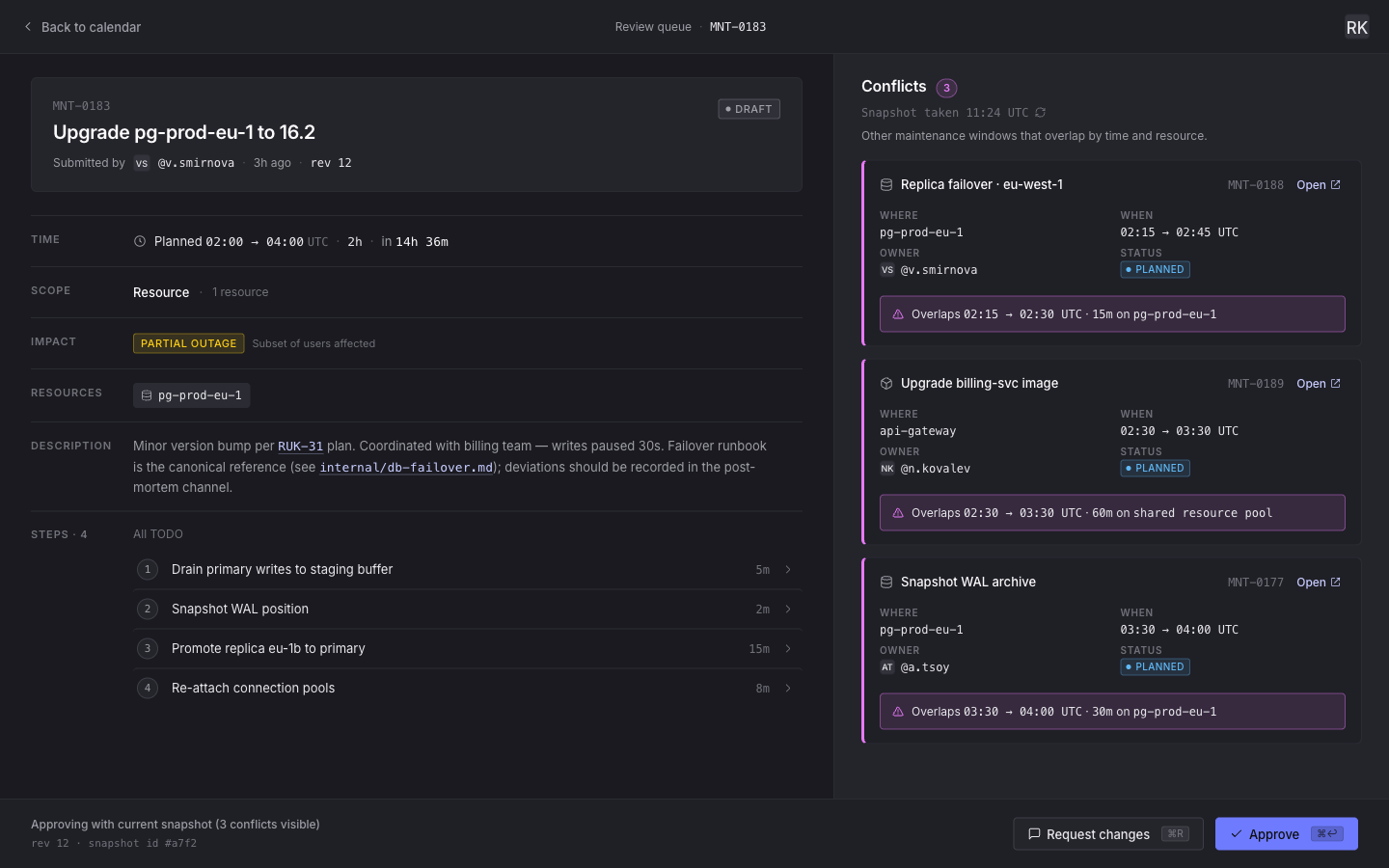
This is the part a shared calendar can't do. The reviewer opens the window and the overlaps are already listed — by time, by resource, with an owner to talk to.

MaintMode approve view: the maintenance on the left, a panel of three detected conflicts on the right showing overlapping windows, owners and exact overlap ranges

What happens

MaintMode finds every planned window that overlaps in both time and resource, and spells out the overlap: 02:15 → 02:30 UTC · 15m on pg-prod-eu-1.

Why it matters

Nobody had to check tickets or ask around. The clash surfaced on its own, while it was still cheap to move.

Checkpoint. Three conflicts, each with a name attached.

Approve on the record

Approving isn't a rubber stamp. You're signing off on exactly the picture you were shown — those three conflicts, that plan.

What happens

If anything changed while you were reading — a new clash appeared, someone edited the plan — the approval doesn't go through. MaintMode tells you what moved and lets you look again.

Why it matters

You can't accidentally approve a stale picture. "I saw these conflicts and accepted them" is on the record, not in someone's memory.

Checkpoint. Status moves to planned, with an audit trail behind it.

Run it, step by step

When the window opens, the executor starts the work and walks the steps. Anyone watching sees it move in real time.

What happens

The window goes in progress and you work through the steps, each with the rollback note you wrote for it.

Why it matters

This is the moment someone else asks "is that alert us?" — and can answer it themselves, without interrupting you.

Checkpoint. The work is visibly running, not a rumour in a thread.

And the whole picture stays in one place

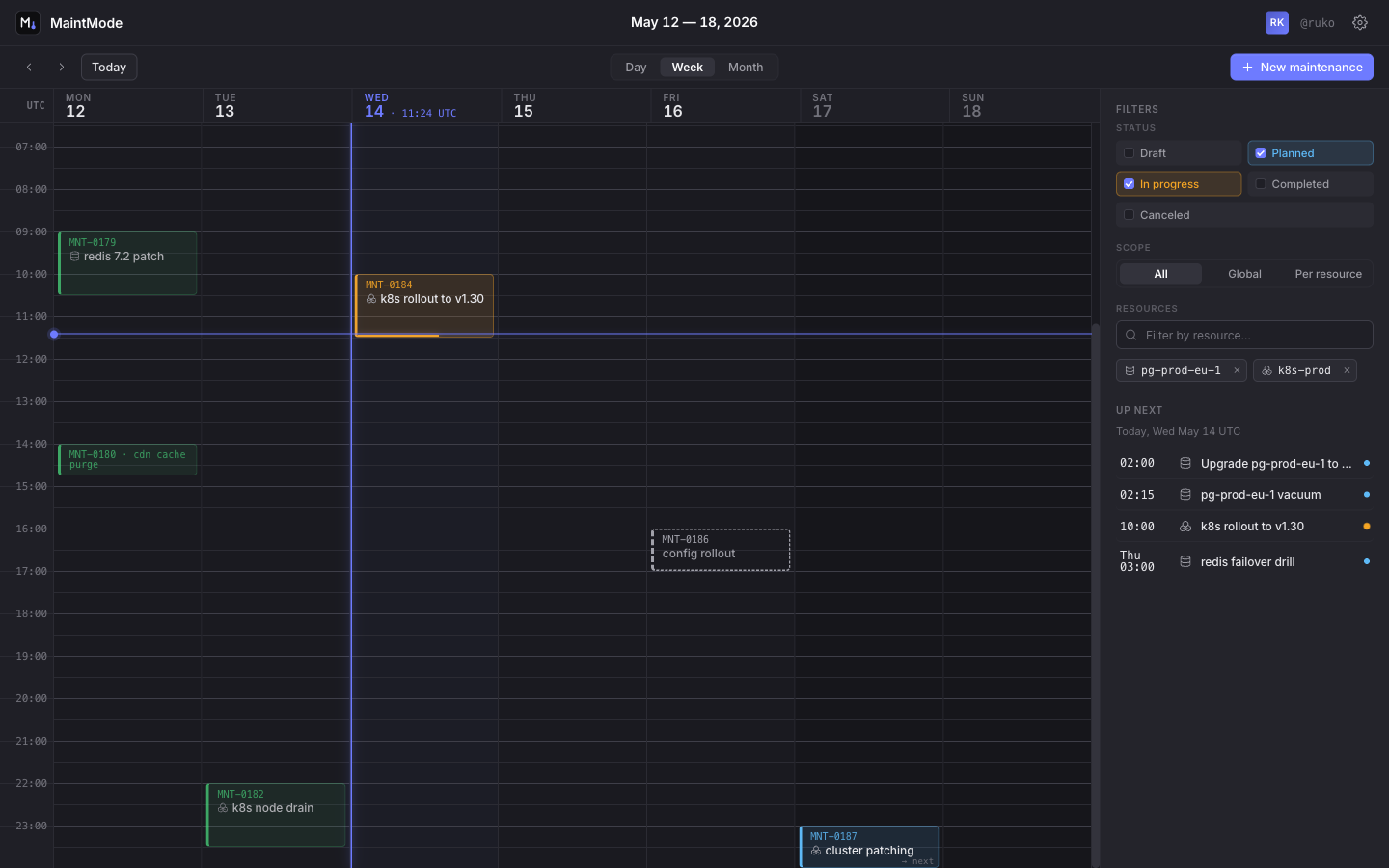
Every window you've planned, run, or finished lands on one timeline — filterable by status and resource.

The MaintMode calendar in week view, showing maintenance windows across the week with status colours, filters and an up-next list

What happens

Day, week and month views. Filter by status or resource; click any window to open the full record.

Why it matters

This is the view you open when something looks off — and the reason the answer takes seconds instead of a Slack search.

Checkpoint. Past, running and scheduled — one screen.

Want to try it on your own work?

There's a live instance. Tell us a bit about your team and we'll get you in.

Request access

Or go back to the overview.